Preparing your download
Windows DNS Changer is being verified and prepared...
- Size
- 8.65 MB
- Downloads
- 0+
- Update date
- Sep 17, 2025
App details
- Version
- 1.1
- Size
- 8.65 MB
- Updated
- October 8, 2013
- Requires
- Windows 7
- Language
- English
- License
- Free
- Developer
- milano88
- Category
- Windows OS
How to install Windows DNS Changer
How to install XAPK / APK file
- Download the XAPK/APK file from the button above.
- Open your device's file manager and locate the downloaded file.
- Tap the file to begin installation.
- If prompted, open settings and enable installs from unknown sources.
- Follow the on-screen instructions to complete the installation.
Description
Download Windows DNS Changer – Free, Secure DNS Management Tool for Windows
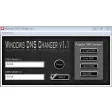
Windows DNS Changer is a lightweight, portable utility that lets you manually switch the DNS servers your PC uses to resolve internet addresses. Designed with a single‑screen interface, the app offers quick access to four popular DNS providers—Google DNS, OpenDNS, DNS Sprint, and a custom entry for your ISP’s servers. Because the program requires no installation, you can keep it on a USB stick and run it on any Windows machine without leaving a footprint. While it excels at simplicity and speed, the tool does not include a built‑in benchmark to compare latency or reliability across the available servers. This review dives deep into the core features, step‑by‑step usage, system compatibility, and the pros and cons that matter most to everyday users and power‑techies alike.
Core Features of Windows DNS Changer
- One‑Click DNS Switching: Instantly select Google DNS (8.8.8.8 / 8.8.4.4), OpenDNS (208.67.222.222 / 208.67.220.220), DNS Sprint (208.67.222.222 / 208.67.220.220), or manually type in any DNS address.
- Portable Design: No installation required; run the executable directly from a folder or USB drive.
- Minimalist UI: A single screen with clear radio buttons and a text box eliminates confusion for non‑technical users.
- Immediate Effect: Changes are applied instantly, without needing to restart the computer or network adapters.
- Low Resource Footprint: The application consumes negligible CPU and memory, making it suitable for older PCs.
- Free to Use: No hidden fees, registration, or trial periods—simply download and start changing DNS.
Installation & Usage Guide – Getting Started in Minutes
Because Windows DNS Changer is a portable app, the installation process consists of a single download and an optional extraction step. Follow these steps for a smooth experience:
Step 1 – Download the Executable
Visit the official website or a reputable software repository, locate the “Windows DNS Changer” download button, and click to save the WindowsDNSChanger.exe file to your preferred folder. The file size is under 1 MB, ensuring a quick transfer even on slow connections.
Step 2 – (Optional) Extract from ZIP
If the download comes as a ZIP archive, right‑click the file, select “Extract All…”, and choose a destination. The extraction process takes less than ten seconds on most machines.
Step 3 – Run the Application
Double‑click WindowsDNSChanger.exe. Windows may prompt a User Account Control (UAC) warning because the program needs administrator privileges to modify network settings. Click “Yes” to continue.
Step 4 – Choose a DNS Provider
The main window displays four radio buttons:
- Google DNS – Fast, globally distributed, and privacy‑focused.
- OpenDNS – Offers optional content filtering and security features.
- DNS Sprint – Historically reliable for ISP‑level performance.
- Custom / ISP – Enables you to type any DNS server addresses manually.
Select the desired option and click the “Apply” button. A brief confirmation appears, and the new DNS settings take effect instantly. To revert to the original configuration, simply select “Custom / ISP” and re‑enter the values provided by your internet service provider.
Step 5 – Verify the Change
Open a command prompt (Win + R → cmd) and type nslookup google.com. The displayed “Server” line should reflect the DNS address you just set. Alternatively, visit a site like dnsleaktest.com to confirm the active DNS servers.
Because the tool does not include a benchmarking feature, users who wish to compare latency should run an external speed test (e.g., Speedtest.net) after each switch. This extra step helps identify the fastest DNS for your current location and network conditions.
Compatibility, Pros & Cons – What Works and What Doesn’t
Windows DNS Changer is built for Windows 7, 8, 8.1, 10, and 11 (both 32‑bit and 64‑bit). The program leverages native Windows networking APIs, so it runs without additional runtimes or .NET frameworks. Users on macOS, Linux, Android, or iOS will need alternative DNS‑changing utilities, as the executable is not cross‑platform.
Pros
- Ultra‑Simple Interface: Ideal for beginners who want to avoid complex network settings.
- Portability: Carry it on a USB stick and use it on any Windows PC without leaving traces.
- Instant Switching: No need to reboot or flush DNS caches manually.
- Free & No Ads: Completely cost‑free with no hidden monetization.
- Low System Impact: Runs silently in the background without noticeable performance loss.
Cons
- Lacks Benchmarking: No built‑in speed test to determine the fastest DNS server for your connection.
- Manual Updates Required: DNS server lists are static; users must add new providers manually.
- Windows‑Only: No support for macOS, Linux, or mobile platforms.
- Limited Customization: No advanced options such as DNS over HTTPS (DoH) or automatic fallback.
- UAC Prompt: Requires administrator rights, which can be a hurdle on locked‑down corporate machines.
Frequently Asked Questions & Final Verdict
Is Windows DNS Changer safe to use?
Yes. The program is unsigned but widely distributed by reputable sites, and it does not contain ads, telemetry, or malicious code. It only modifies the DNS settings on the local machine, which is a standard Windows operation.
Do I need an internet connection to change DNS?
You need an active network connection to test the new DNS after applying it, but the actual change can be made offline. Once you reconnect, the system will use the newly configured servers.
Can I schedule automatic DNS changes?
No. Windows DNS Changer does not include scheduling or scripting features. Users who need automation must create their own batch files or use Windows Task Scheduler alongside the command‑line netsh tool.
Will changing DNS affect my VPN connection?
Generally, VPNs route DNS queries through the tunnel, overriding local DNS settings. However, if the VPN is configured to use the system DNS, changing it with Windows DNS Changer will affect the VPN’s lookup behavior. Test both scenarios to confirm.
How do I revert to my original DNS settings?
Select the “Custom / ISP” option in the app, enter the DNS addresses supplied by your ISP, and click “Apply.” Alternatively, you can run netsh interface ip set dns name="Wi‑Fi" source=dhcp in an elevated command prompt to restore DHCP‑provided DNS automatically.
Final Verdict: Windows DNS Changer shines as a no‑frills, portable utility for anyone who wants instant control over their DNS configuration on Windows. Its simplicity, zero‑cost model, and immediate effect make it a handy tool for troubleshooting, privacy‑conscious browsing, or bypassing regional restrictions. The absence of a built‑in benchmark means power users will need an external speed test to fine‑tune their choice, and corporate environments may object to the required administrator rights. Nevertheless, for home users, students, and occasional IT pros, the app delivers exactly what its name promises—quick DNS changes without the bloat.
Ready to take control of your internet resolution? Download Windows DNS Changer now and enjoy a faster, more secure browsing experience in just a few clicks.
Download safety
TotalVirus Scanned
This software has been scanned for malware and verified safe for download.SoftPas in:
This product is also available in the following languages: